How do I install FireAnime on Windows or Linux, and which server do I enter?
Download the matching Windows or Linux package from the desktop page. The official FireAnime desktop app connects to https://fireani.me, not the Jellyfin server https://media.fireani.me and not an /api path.
Covered in this guide: FireAnime Desktop — Windows / Linux
Availability and requirements
This guide is for the official FireAnime desktop app on Windows and Linux. You need an internet connection for setup. A macOS DMG is not currently a released installation option.
The screenshots show the desktop app's English interface. You do not need an account to configure the server.
Steps
Windows: open the right package
- Open the desktop app download section.
- Download the
.EXEinstaller in the Windows section and open the downloaded file. - Complete the installation wizard and launch FireAnime. Continue with server setup below.
Linux: choose the matching package
- Open the desktop app download section and find Linux.
- Choose
.DEBfor Debian/Ubuntu,.RPMfor an RPM-based distribution orARCHfor Arch Linux. Open the downloaded package with your distribution's package manager. - If you choose AppImage instead, use your file manager to allow the downloaded file to run as a program, then open it. The permission's label depends on your file manager.
- Launch FireAnime and continue with server setup.
Choose one Linux package, not all of them. The distribution packages install through your system's package manager; an AppImage is a file you keep and launch directly. Keep that file in a stable location instead of deleting it as though it were only an installer. If a package reports missing dependencies or a different CPU architecture, stop and check the current download requirements rather than trying another operating system's installer.
Connect on first launch
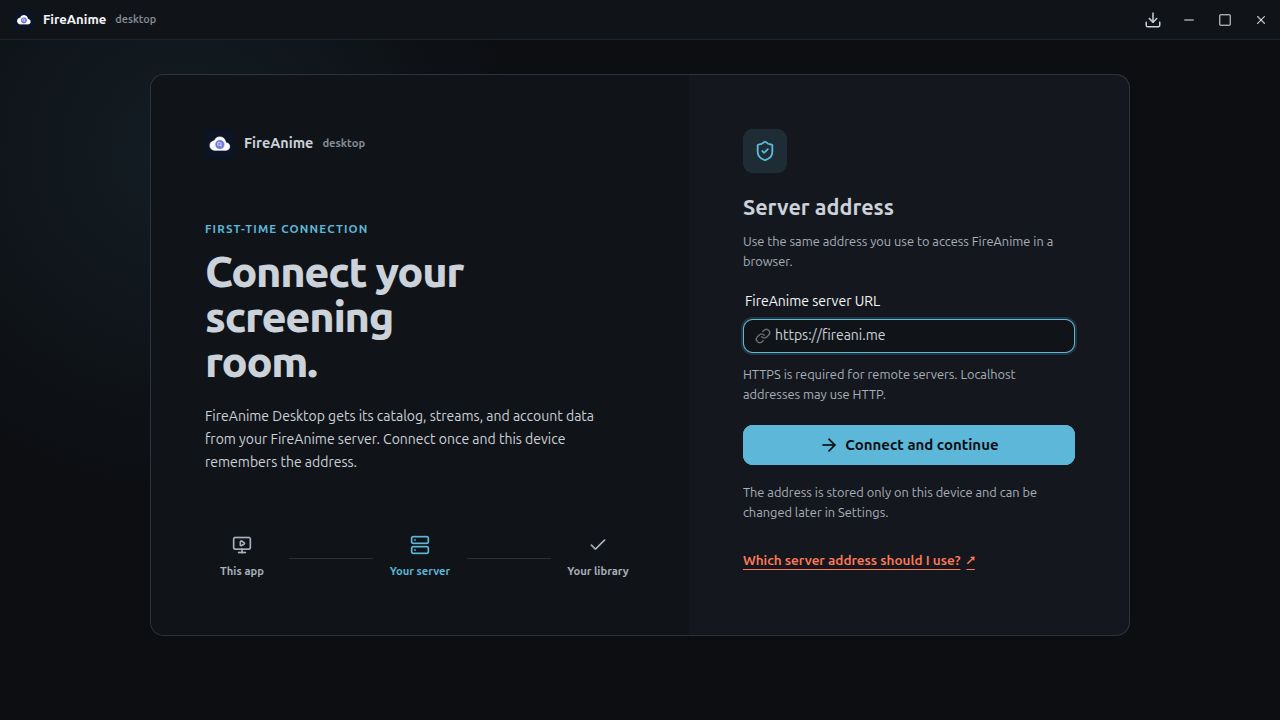
- On Connect your screening room., find FireAnime server URL on the right.
- Enter
https://fireani.me. Do not add/apior an anime or episode address. - Select Connect and continue. The button reads Checking server while the connection is checked.
- A successful connection opens Home, showing Explore FireAnime and the catalog. To access your account, select Sign in at the bottom left afterward.
Change a saved address
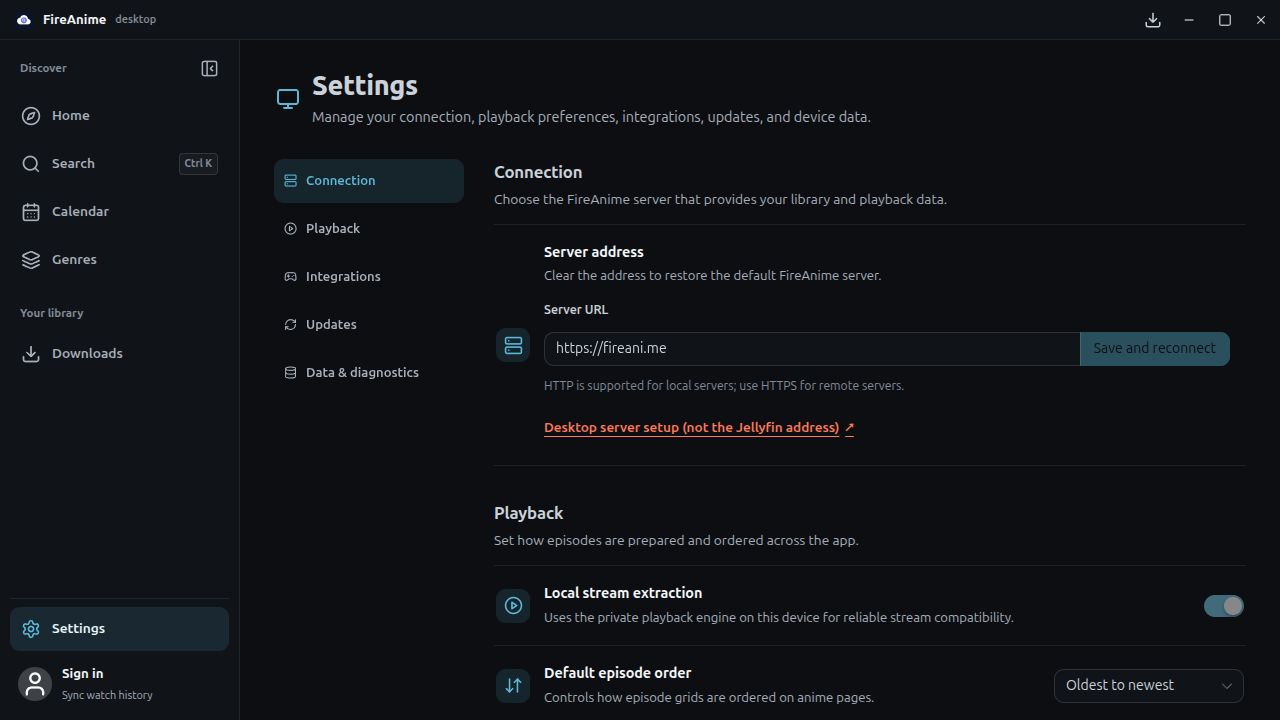
- Select Settings at the bottom left of the sidebar.
- Choose Connection in settings.
- Under Server address, replace Server URL with
https://fireani.me. - Select Save and reconnect. The button stays disabled if the address has not changed.
Expected result
The desktop app displays the catalog, and Settings → Connection → Server URL shows https://fireani.me. Your account library becomes available after sign-in; connecting the server does not sign you in.
To finish your first session, open Search in the sidebar, find an anime and choose a season and episode. Select the language/source you want before playback. Once that works, try one episode download or a season download. The downloaded installer itself does not contain anime videos.
Limitations and troubleshooting
- The server check fails: Check the spelling and your internet connection. Open
https://fireani.mein a browser. If the website is also unavailable, retry after connectivity is restored. - You entered
https://media.fireani.me: That address is for Jellyfin-compatible clients, not this app. Correct it in Settings → Connection. - A warning requires HTTPS: Use exactly
https://fireani.me, including thehttps://prefix. - The catalog loads, but an episode will not start: Connecting the server and playing an episode are separate steps. Follow playback-engine troubleshooting instead of choosing Clear data.
- The installer opens but the app does not: Record your Windows/Linux version, package type and the exact error for support. Do not disable system security or use an unofficial replacement package.
- You are updating an existing installation: Follow the desktop update steps. You do not need to erase the server, saved accounts or downloads before a normal update.