How do I download a whole season in the desktop app?
Open an anime in the desktop app, choose the season and select Download season. The app queues available episodes and skips episodes that are already queued, restricted or unavailable.
Covered in this guide: FireAnime Desktop — Windows / Linux
Availability and requirements
This guide is for the official FireAnime desktop app on Windows and Linux, not the website or a Jellyfin client. The screenshots show the desktop app's English interface.
You need enough free storage and an internet connection while downloading. Bulk downloads do not guarantee that every episode is available or uses the same language version. If a particular language matters, download individual episodes using the appropriate source.
Steps
- Open the anime from Home or Search. Stay on the anime's detail page; you do not need to start an episode.
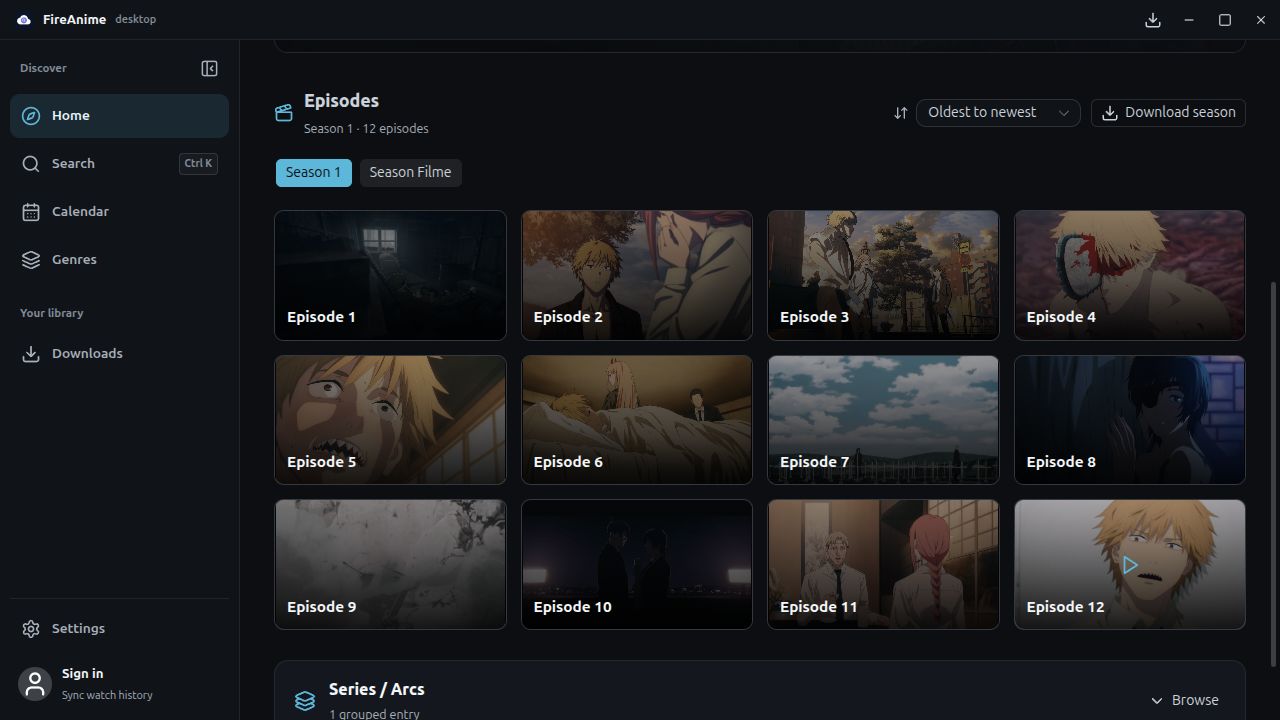
- Scroll to Episodes. Choose the season beneath it, for example Season 1. The selected season is highlighted; the season and episode count appear under Episodes.
- Select Download season, to the right of the sort control.
- Wait for Queueing …/… to disappear. Read the message about added or skipped episodes. This counter describes tasks being queued, not completed downloads.
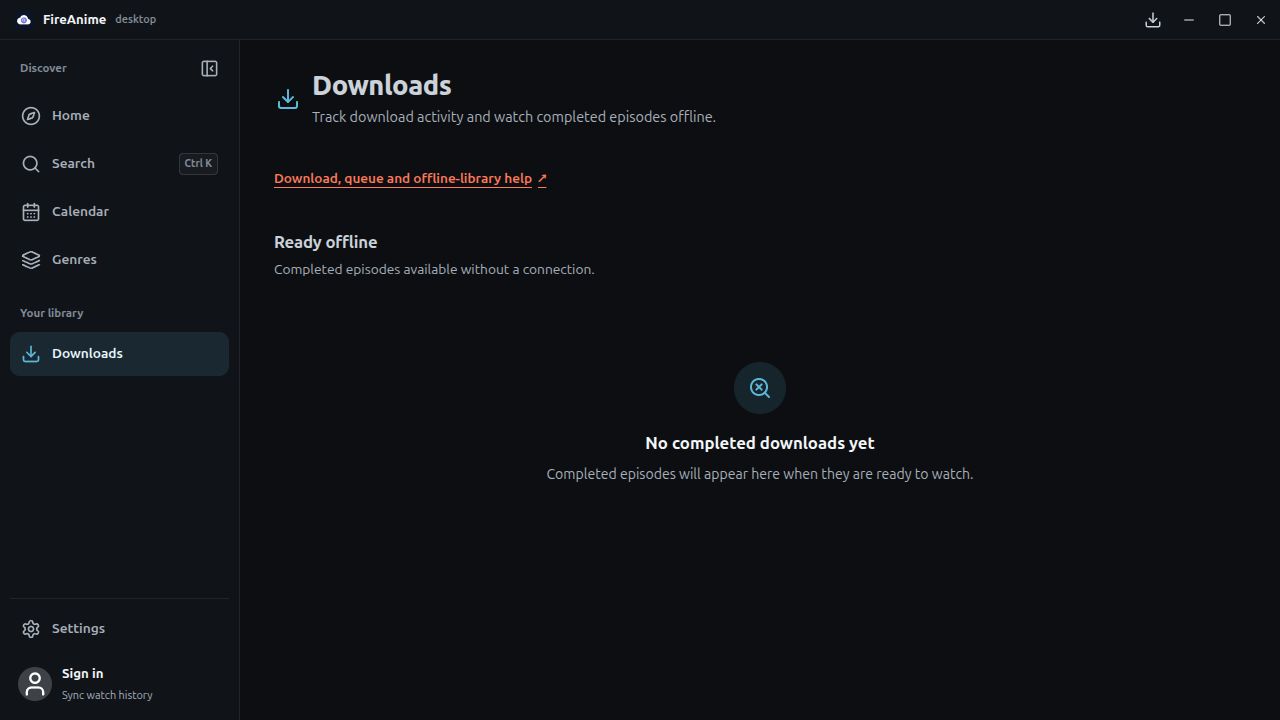
- Open Downloads under Your library in the left sidebar. If the confirmation offers View downloads, that button goes to the same page.
- Check Download activity for running tasks. Ready offline contains anime with completed episodes. Open an anime there, choose the season, then select Play on a completed episode.
Expected result
The app creates tasks for available new episodes and skips existing tasks. A message such as 12 episodes added to Downloads means twelve tasks were added, not that twelve episodes are ready offline.
Before a trip, compare the completed episode numbers with the season you wanted. A season with twelve listed episodes and only ten completed downloads is still missing two, even if its anime card already appears under Ready offline. Use the offline playback check on a completed episode before relying on the collection.
Limitations and troubleshooting
- Episodes were skipped: They may already be queued, be restricted or have no usable source. Compare the episode list with Downloads.
- Some episodes could not be added: Select Download season again. Existing tasks will not be added a second time.
- An existing task is
failedorcancelled: Select its circular-arrow Retry control. Queuing the entire season again does not replace this step. - A task is still running: For
queuedordownloadingtasks, the X-shaped Cancel control stops the task. A cancelled task is not ready to play offline. - The language is wrong: Bulk downloads do not provide one language choice for the entire season. Check the source for the individual episode.
- You are about to go offline: Keep the app open while it downloads. Before travelling, check that the episode appears in Ready offline and opens without a connection.
- No new episodes were available to add: Check existing tasks first. A failed or cancelled entry also counts as an existing task; use its Retry action instead of repeatedly queuing the season.
- Storage is running out: Cancel unneeded pending tasks in the queue, then delete selected completed episodes. Cancel does not delete your whole offline season.