How do I change language, theme, page layout and Discord activity?
Use Customize Home for website sections, the footer for website language, and Android Settings for the app's light/dark theme and menu language. Desktop shares activity through its separate Discord Rich Presence switch; none of these controls changes an episode's audio language.
Covered in this guide: Website in a browser · FireAnime for Android · FireAnime Desktop · FireAnime TV · FireAnime for LG webOS
Availability and requirements
The layout steps below apply to the website. Sign in to enable “Customize Home”; signed-out visitors see “Sign in to customize”. You can change the website language without an account. App settings and Discord are separate.
Choose the setting that matches the problem:
| What you want to change | Use this control |
|---|---|
| Which sections appear on the website homepage | Customize Home, below. |
| German or English website menus | The language buttons in the footer. |
| Light/dark appearance or menu language in the Android app | Settings → Appearance or App language in that app. |
| Audio or subtitles of an episode | Playback language preferences, not the menu-language selector. |
| Avatar, banner or visibility to visitors | Profile settings, not a homepage template. |
| Whether desktop shares watching activity with Discord | Settings → Integrations → Discord Rich Presence in FireAnime Desktop. |
Steps
- Open Home and select “Customize Home” above the content sections.
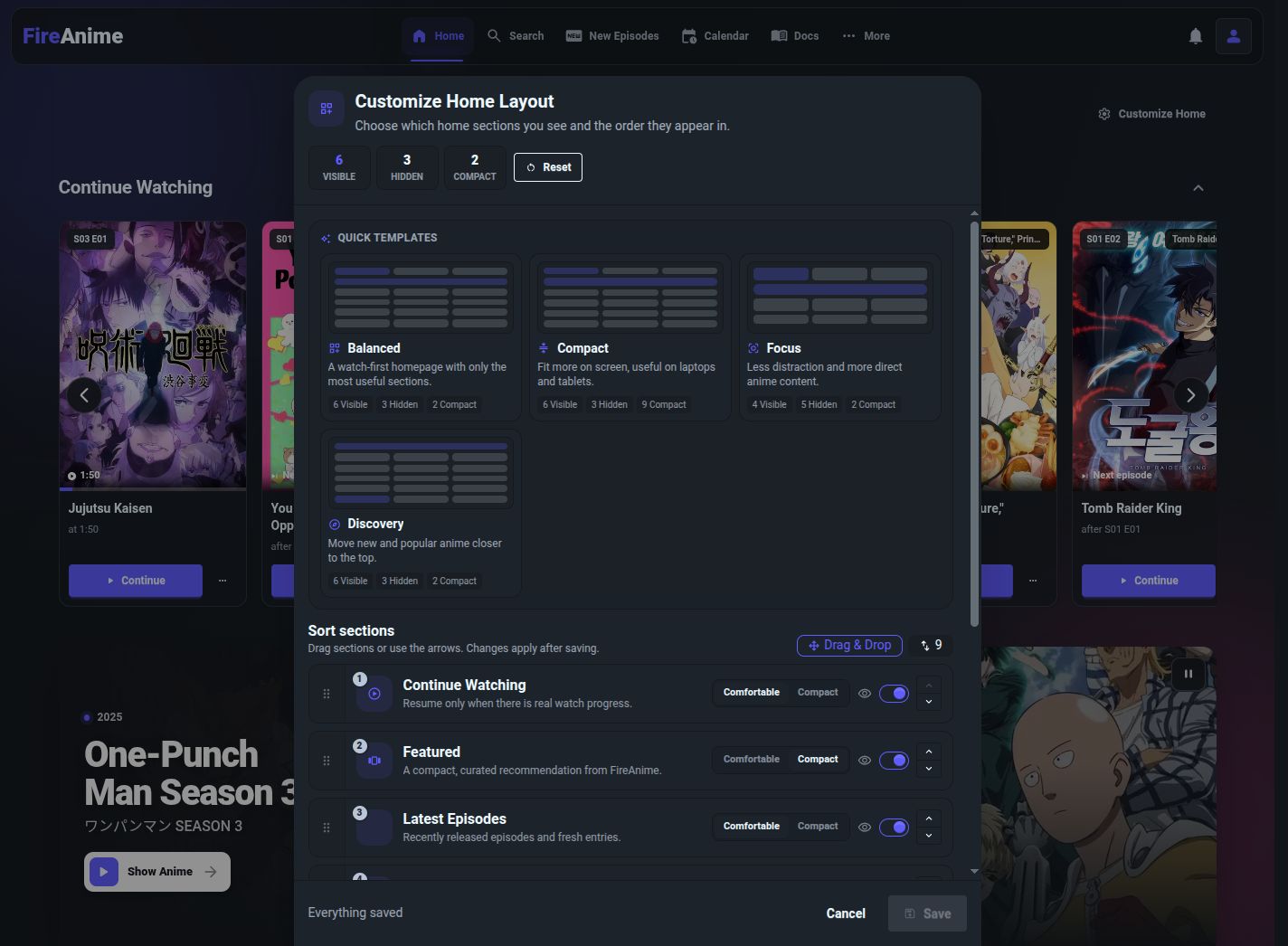
- In “Customize Home Layout”, “Quick templates” offers “Balanced”, “Compact”, “Focus” and “Discovery”. A template changes the selection and arrangement of several sections at once.
- For individual changes, go to “Sort sections”. Drag a row into position or use its arrows on the right. The row’s switch shows or hides that section; “Comfortable” and “Compact” change its presentation.
- Select “Save” to apply your changes. “Cancel” closes the dialog without applying them. “Reset” restores the default selection in the dialog; review it before saving.
Change the website language
- Scroll to the bottom of the page.
- Under “Stay connected”, select “Deutsch” or “English”. Website labels change; video audio and subtitles are unaffected.
App settings and Discord
Official Android app: theme and language
- Open Settings in the Android app.
- Under Appearance, select Light or Dark. This changes the app's surfaces; it does not change a video or your public profile.
- Under App language, select System, Deutsch or English. System follows the device language; an explicit language overrides that choice for app menus.
- Check the changed labels/appearance in the app. These choices are separate from the website and from Preferred stream language further down the settings page.
Windows/Linux desktop: Discord activity
- Open Settings → Integrations in FireAnime Desktop. The controls are currently English.
- Turn Discord Rich Presence off to stop sharing playback activity from the app, or on if you want that integration enabled.
- Wait for the switch to finish saving and check that it retains the intended state. This switch is independent of whether your FireAnime profile is public or private.
Themes are client-specific: the website's Compact template is not an app theme. Do not apply website layout steps to TV clients or expect an Android setting to reconfigure Streamyfin or Swiftfin.
Expected result
After saving, homepage sections appear in your chosen order and presentation. Hidden sections no longer appear there; their data is not deleted.
Limitations and troubleshooting
- A homepage section is missing: open Customize Home, enable its row and save. Continue Watching also requires saved viewing progress; enabling it alone does not create entries.
- Your custom order vanished: check that you saved rather than cancelled and are using the intended account. Reset replaces the selection in the dialog, so review it before saving.
- Menus changed but the anime is still in the wrong language: change the playback language.
- Help stayed in another language: Help has its own language selector, which preserves the current article.
- Discord still shows something unexpected: check the FireAnime Desktop switch and Discord's own activity controls. A private FireAnime profile does not disable Discord activity.
Local app themes and layouts do not automatically transfer to other clients. None of these appearance controls deletes your watch history or downloaded episodes.