How do I find anime with search, filters and sorting?
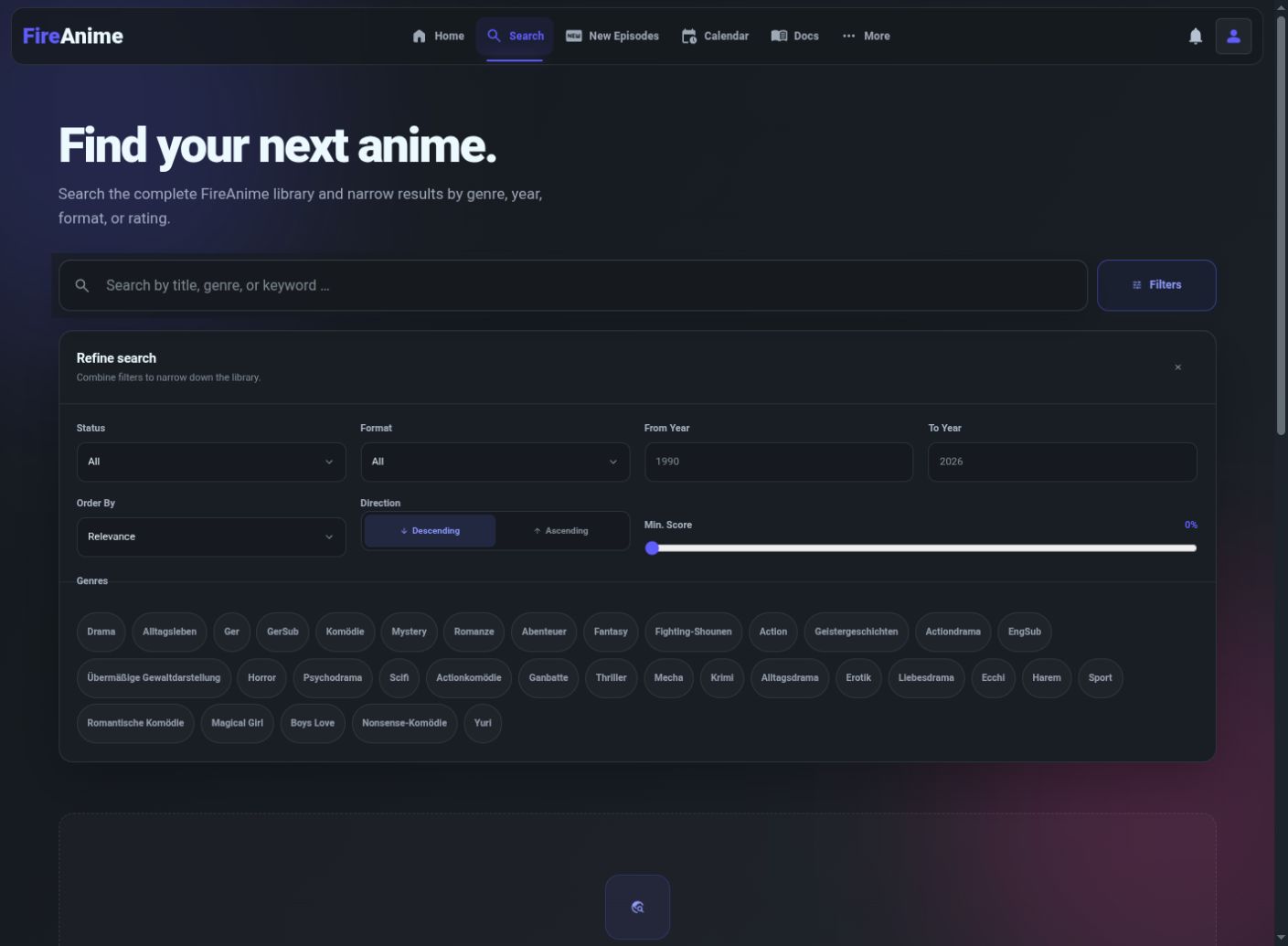
Open Search, enter a title or choose a genre, then use Filters to narrow the format, year, status or rating. Active filter chips show what is restricting the results; Close filters hides the panel but does not clear those restrictions.
Covered in this guide: Website in a browser
Availability and requirements
These steps apply to the FireAnime website in a browser, not the TV or desktop app search screens. No account is required. An active filter can exclude a title that otherwise exists.
Steps
- Open Search and enter the title in “Search by title, genre, or keyword …”. You can also start with a filter without entering a title.
- Select “Filters” next to the search field. This opens “Refine search”.
- To find movies, choose “Movie” under “Format”. Use “From Year” and “To Year” for a date range; enter the same year in both fields for a single year.
- Under “Order By”, choose “Relevance”, “Popularity”, “Rating” or “Year”. Set the direction with “Descending” or “Ascending”. “Min. Score” sets the minimum rating.
- Check the active filters below the search field, such as “Format: Movie”. Select an individual filter to remove it, or “Remove all” to remove the restrictions. The open filter panel also offers “Reset filters”.
- Open a matching anime from the results. To share the same search, copy the browser address; anime filters are included in the URL.
Two useful searches to try
- A movie from one year: open Filters, set Format → Movie, and put the same year into From Year and To Year. Leave the title empty to browse all matching movies. Sort by Rating → Descending if you want the higher-rated matches first.
- A story in a genre you enjoy: select a button under Genres. Selected buttons remain highlighted; select one again to remove it. Start with one genre, inspect the results, then add restrictions gradually.
Status describes the anime's release status, not whether every video works. Min. Score excludes results below that rating; it is easy to leave it high and accidentally hide a title.
Asking a Help question in anime search
You can enter a question such as “How do I install on iPhone?” in the website's search. Read the separately labelled Help results and open an answer; anime results and their filters remain separate.
For a help-only search, open Search Help. Select the relevant device or category if needed. If you want to share that help search, use Share search results; its search state is kept in the link's fragment. This is different from copying an anime search URL with catalog filters.
What you should see
The results now match the title and filters shown above them. Use Next and Previous below a multi-page result list to continue browsing. Open the title and check its episode/source choices before treating a result as something you can watch.
Missing results and common mix-ups
- No results found: select Remove all, shorten the title and try a familiar alternative title. Reintroduce filters one at a time so you can see which restriction excludes it.
- Search error: use Try again. An error is not proof that the title is absent.
- Filters disappeared but results are still narrow: Close filters only folds the panel away. Remove the active filter chips to change the search.
- You wanted a specific video language: a catalog tag is not a guarantee for every episode. Open the episode and choose its Sub/Dub source.
- You wanted a sequel or special: it may be a separate title or group. Use seasons and groups.
- Few results after sorting: sorting only changes order; check the title, score threshold and other filters. It cannot add missing titles.